https://martian0001.tistory.com/m/9
[macOS] GCC환경에서 SDL2 설치 방법: 'SDL2/SDL.h' not found 에러 해결법
macOS에서 C/C++로 게임 개발이나 그래픽 프로그래밍을 시작할 때 가장 먼저 찾는 라이브러리가 SDL2입니다. 오늘은 GCC를 활용할 때, Homebrew를 이용한 SDL2 설치부터, 컴파일 에러를 완벽하게 해결한
mardish.blog
지난 시간에는 맥(MAC) 환경에서 SDL2를 설치하고 여러 에러를 넘어서 제대로 실행하는 방법을 정리해보았고 이번에는 기본적인 윈도우를 띄우는 방법에 대해 알아보려한다.
https://wiki.libsdl.org/SDL2/FrontPage
SDL2/FrontPage
The Simple Directmedia Layer Wiki
wiki.libsdl.org
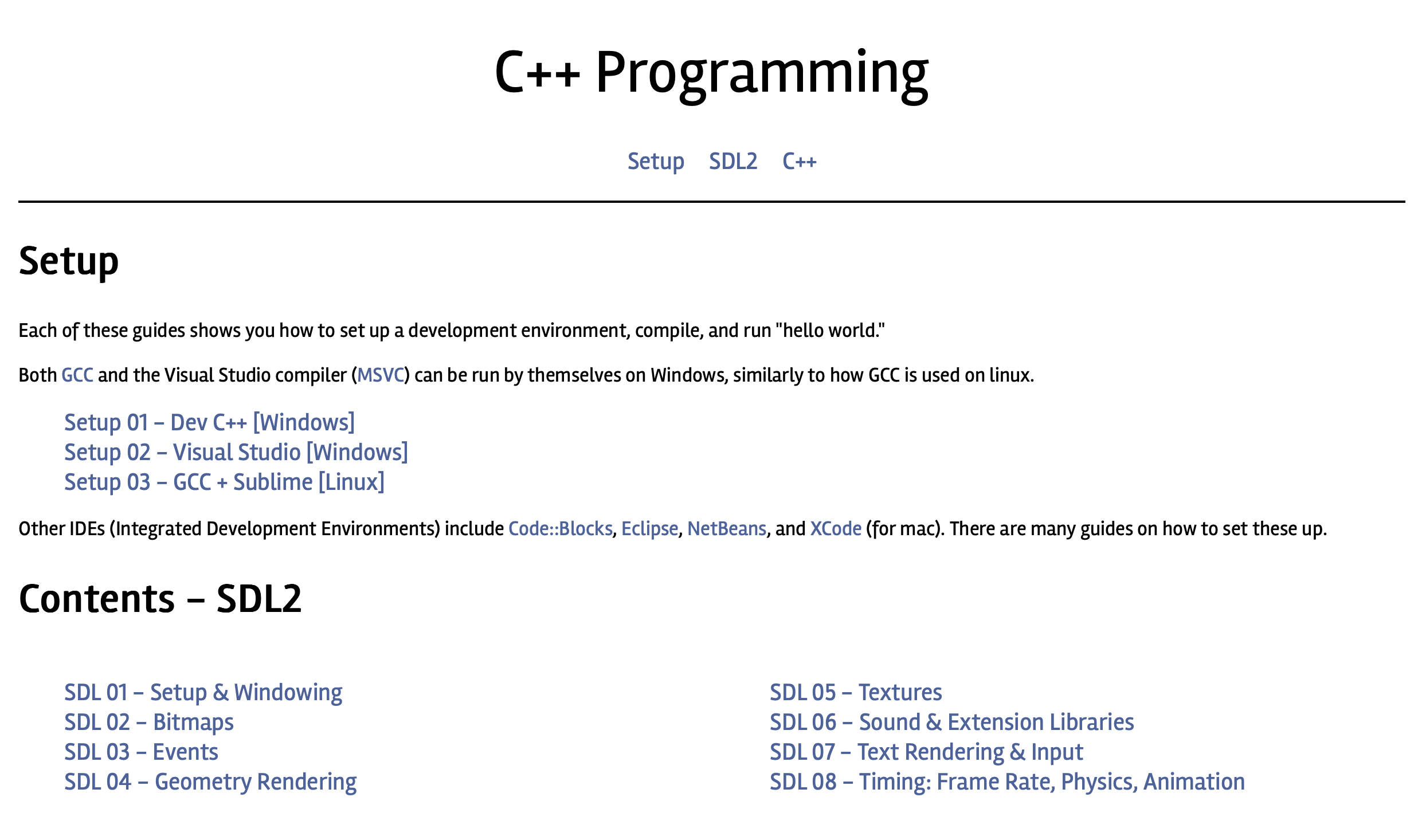
먼저 위 링크를 통해 SDL2 위키에서 관련 정보를 찾을 수 있는데 Tutorials 페이지에서 여러 프로젝트를 확인 할 수 있다. 아래는 그중 하나의 프로젝트로 오늘은 이 프로젝트에서 윈도우를 띄우는 코드를 살펴보려한다. 아래의 링크를 통해 튜토리얼 페이지를 확인할 수 있다.
https://thenumb.at/cpp-course/index.html#sdl
C++ Programming
thenumb.at
Window 창 띄우는 코드
#include <iostream>
#include <SDL.h>

// You shouldn't really use this statement, but it's fine for small programs
using namespace std;

// You must include the command line parameters for your main function to be recognized by SDL
int main(int argc, char** args) {

	// Pointers to our window and surface
	SDL_Surface* winSurface = NULL;
	SDL_Window* window = NULL;

	// Initialize SDL. SDL_Init will return -1 if it fails.
	if ( SDL_Init( SDL_INIT_EVERYTHING ) < 0 ) {
		cout << "Error initializing SDL: " << SDL_GetError() << endl;
		system("pause");
		// End the program
		return 1;
	}

	// Create our window
	window = SDL_CreateWindow( "Example", SDL_WINDOWPOS_UNDEFINED, SDL_WINDOWPOS_UNDEFINED, 1280, 720, SDL_WINDOW_SHOWN );

	// Make sure creating the window succeeded
	if ( !window ) {
		cout << "Error creating window: " << SDL_GetError()  << endl;
		system("pause");
		// End the program
		return 1;
	}

	// Get the surface from the window
	winSurface = SDL_GetWindowSurface( window );

	// Make sure getting the surface succeeded
	if ( !winSurface ) {
		cout << "Error getting surface: " << SDL_GetError() << endl;
		system("pause");
		// End the program
		return 1;
	}

	// Fill the window with a white rectangle
	SDL_FillRect( winSurface, NULL, SDL_MapRGB( winSurface->format, 255, 255, 255 ) );

	// Update the window display
	SDL_UpdateWindowSurface( window );

	// Wait
	system("pause");

	// Destroy the window. This will also destroy the surface
	SDL_DestroyWindow( window );

	// Quit SDL
	SDL_Quit();

	// End the program
	return 0;
}
위 코드는 SDL 01 Setup & Windowing 페이지에 있는 코드이다. 윈도우 운영체제 환경에서는 정상적으로 실행되겠지만 맥 + gcc 환경에서는 코드 수정이 필요하다.
헤더 파일 수정
수정 전 코드
#include <SDL.h>수정 후 코드
#include <SDL2/SDL.h>SDL.h 파일이 SDL2안에 있기 때문에 위와 같이 수정해야 한다.
system("pause") 수정
삭제할 코드
system("pause");예제 코드의 중간중간에 system("pause")가 끼어있는 것을 확인 할 수 있다. 프로그램을 일시정지 하고 싶을 때 사용하는 코드로 흔히 보는 "계속하려면 아무 키나 누르십시오..." 문구를 띄우는 함수이다. 하지만 해당 코드는 윈도우 운영체제에서만 작동하는 기능으로 맥 환경에서는 의미가 없게 된다. 그래서 그냥 삭제해 버렸지만 삭제하지 않아도 그냥 에러 메세지만 뜨고 프로그램은 정상적으로 실행된다.
삭제 하지 않았을 때의 에러 메세지
sh: pause: command not found
루프 추가
아마 system("pause") 코드를 삭제하고 코드를 실행해보면 창이 뜨지않고 프로그램이 바로 종료되는 것을 확인할 수 있다. 윈도우 환경에서는 system("pause")가 일시정지 기능을 하여 프로그램이 끝나지 않고 창을 계속 띄우는 역할을 하였지만 맥에서는 해당 기능을 사용하지 못하기 때문에 따로 루프를 만들어 줘야 한다.
수정 전 코드
	...

	SDL_FillRect( winSurface, NULL, SDL_MapRGB( winSurface->format, 255, 255, 255 ) );
	SDL_UpdateWindowSurface( window );

	system("pause");

	SDL_DestroyWindow( window );
	SDL_Quit();

    ...
수정 후 코드
	...

	SDL_FillRect( winSurface, NULL, SDL_MapRGB( winSurface->format, 255, 255, 255 ) );
	SDL_UpdateWindowSurface( window );

	// 창 닫을 때까지 대기
	SDL_Event e;
	bool quit = false;
	while ( !quit ) {
		while ( SDL_PollEvent( &e ) ) {
			if ( e.type == SDL_QUIT ) quit = true;
		}
	}

	SDL_DestroyWindow( window );
	SDL_Quit();

    ...
수정 전후의 코드를 비교해보면 system("pause") 자리에 while 구문을 넣어서 매번 들어오는 이벤트를 확인하고 창 닫기 이벤트가 발생하기 전까지 프로그램이 종료되지 않도록 잡아두는 역할을 하고 있다.
프로그램 실행
실행 불가능 명령어
gcc main.c -o main -I/opt/homebrew/include $(sdl2-config --libs)이전 글에서는 위 명령어로 실행하였지만 이건 C언어 파일을 실행하기 위한 명령어이다. 하지만 예제 코드는 c++이기 때문에 명령어 수정이 필요하다.
실행 가능 명령어
gcc main.cpp -o main -lstdc++ -I/opt/homebrew/include $(sdl2-config --libs)main 다음에 -lstdc++ 를 추가하면 c++ 파일을 실행할 수 있다. main.cpp 부분은 본인의 상황에 맞게 [실행할 파일명]으로 바꾸고 main은 원하는 명칭으로 바꾸어도 된다.
실행
./main
예제 코드
#include <iostream>
#include <SDL2/SDL.h>

using namespace std;

int main(int argc, char** args) {

	SDL_Surface* winSurface = NULL;
	SDL_Window* window = NULL;

	if ( SDL_Init( SDL_INIT_EVERYTHING ) < 0 ) {
		cout << "Error initializing SDL: " << SDL_GetError() << endl;
		return 1;
	}

	window = SDL_CreateWindow( "Example", SDL_WINDOWPOS_UNDEFINED, SDL_WINDOWPOS_UNDEFINED, 640, 320, SDL_WINDOW_SHOWN );

	if ( !window ) {
		cout << "Error creating window: " << SDL_GetError() << endl;
		return 1;
	}

	winSurface = SDL_GetWindowSurface( window );

	if ( !winSurface ) {
		cout << "Error getting surface: " << SDL_GetError() << endl;
		return 1;
	}

	SDL_FillRect( winSurface, NULL, SDL_MapRGB( winSurface->format, 255, 255, 255 ) );
	SDL_UpdateWindowSurface( window );

	// 창 닫을 때까지 대기
	SDL_Event e;
	bool quit = false;
	while ( !quit ) {
		while ( SDL_PollEvent( &e ) ) {
			if ( e.type == SDL_QUIT ) quit = true;
		}
	}

	SDL_DestroyWindow( window );
	SDL_Quit();

	return 0;
}
'개발 > 맥(MAC) 사용법' 카테고리의 다른 글
| [macOS] GCC환경에서 SDL2 설치 방법: 'SDL2/SDL.h' not found 에러 해결법 (1) | 2026.03.31 |
|---|---|
| 맥(MAC)에서 파일 첨부 시 경로 입력으로 빠르게 이동하기 - Command + Shift + G 활용법 (0) | 2026.03.29 |
